
How it works

Your description becomes the ticket.

RefineBrief is an app inside Jira Cloud. It generates tickets from your request, using your chosen template and context from the connected code.

  1. 01

    Describe what you need

    Write the request in your own words. Choose the connected repositories and ticket template.

  2. 02

    Review the generated tickets

    Check the scope, acceptance criteria, code references and open questions. Edit the proposals with your team.

  3. 03

    Create them in Jira

    Confirm creation in the linked Jira project. Your team takes it from there.

Inside the app

See each step in Jira.

The captures below show the real app with fictional demonstration data. The interface is shown in English.

On mobile, swipe across the details or open the image at full size.

01 · REQUEST

Describe the change

Describe the request. Select the request type, template and code sources to use when generating the tickets.

The selected sources define the code context for this request. The template guides the structure of the proposed tickets.

Open image at full size
RefineBrief inside JiraFictional demo data
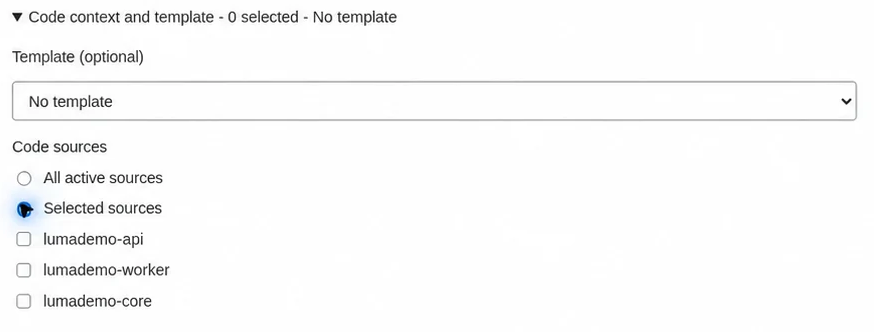
RefineBrief template and repository controls with fictional LumaDemo repository names

Request controls · optional template and selected code sources

Enlarged detail · open image
02 · REVIEW

Review the generated tickets

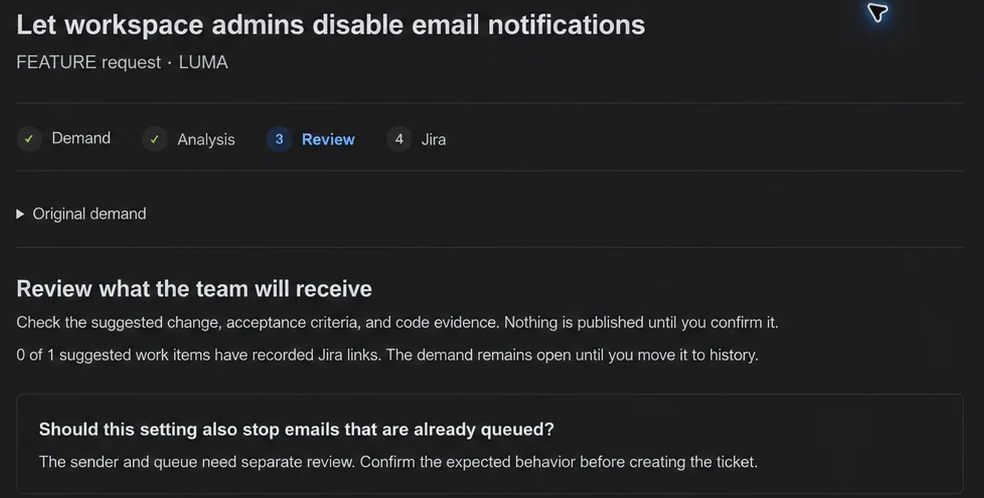
Review the generated tickets and their supporting code references. Check the proposed scope, possible impact and questions still to resolve.

Open image at full size
RefineBrief inside JiraFictional demo data
RefineBrief review screen with fictional demo data

Review · the team sees the questions still to resolve

Enlarged detail · open image

03 · JIRA

Create them in Jira

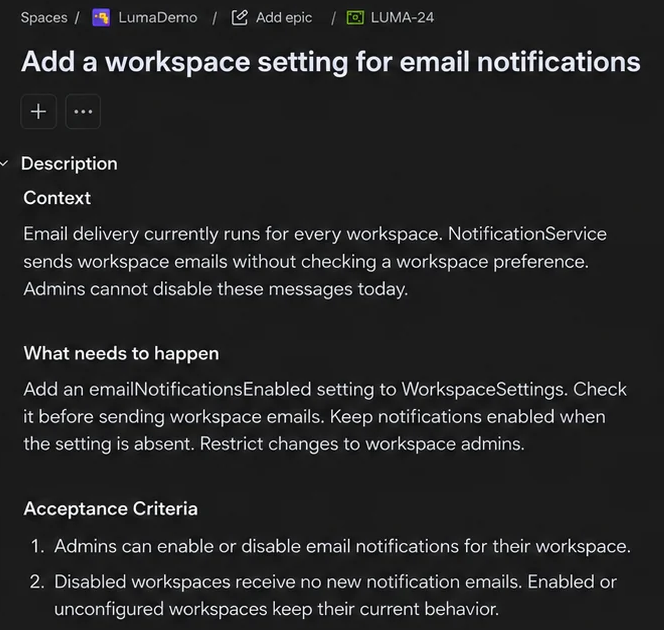
Choose Create in Jira on a reviewed proposal, then confirm publication to the linked project’s backlog. This capture shows a ticket after creation.

Reviewing a proposal does not create a Jira ticket. The separate confirmation is where you approve publication.

Open image at full size
RefineBrief inside JiraFictional demo data
A Jira ticket with fictional demo data

Jira ticket · context, expected change and acceptance criteria

Enlarged detail · open image

The result

This is what reaches your backlog.

The ticket brings the requested change, acceptance criteria, test scenarios, possible code impact and open questions together.

AFTER · GENERATED TICKET
For team review

Add a workspace setting for email notifications

Context

Email delivery currently runs for every workspace. Admins cannot disable these messages today.

Expected change

Add a workspace preference and check it before sending notification emails. Keep notifications enabled when the preference is absent.

Scope

Workspace settings, notification delivery, admin permissions and regression tests.

Acceptance criteria

  1. Workspace admins can enable or disable email notifications.
  2. Disabled workspaces receive no new notification emails.
  3. Enabled or unconfigured workspaces keep their current behavior.
  4. Changing one workspace does not affect other workspaces.

Test scenarios

Preference enabled, disabled and absent; admin and non-admin access; isolation between workspaces; queued emails after the team decision.

Likely impact and evidence

Review the preference loader, the shared email sender and the queue consumer.

WorkspaceSettings · NotificationService · EmailQueueWorkerFictional reference for this example

Open questions

  • Should this also stop emails already queued?
  • Which notification types should this setting cover?
Illustrative ticket content. Repository, identifiers and behavior are demonstration data, not a live analysis result.

Your workflow, your choices

Choose the template. Keep control of the result.

Your ticket template

Choose a template to guide the ticket structure, or use the default structure.

Your repositories

Use the connected code sources relevant to the request, including more than one repository.

Your approval

Review and edit each proposal. Creating the ticket in Jira requires your confirmation.

Current pilot

Jira Cloud + Java repositories.

Agree on the Jira project, repositories and access requirements before connecting. Confirm your Git provider and repository coverage during the demo.

Repository access and data handling
How code context is found

Code symbols, relationships, text search and semantic search help locate relevant code. The available context depends on repository coverage and the indexed code version.

Possible impacts and unanswered questions remain available for team review.

See the Jira ticket generator in action

Bring a description. See the ticket.

Walk through the app inside Jira, from a request to a generated ticket, using a demonstration repository.

30-minute product demoSample data. No repository connection needed.

Send a request and we will contact you to arrange the demo.